Units in Corva
Every numeric measurement must have a producer-defined source unit, but a dataset record does not always include that unit next to the value. A frontend app is responsible for confirming the data contract, converting the source value for display, and showing a matching unit label. This lets the same app follow each customer's unit preferences without changing the underlying data.
The basic flow is:
source value and source unit → effective display preference → converted value and matching label
Fetching a value from an API or dataset does not convert it. Standard unit-aware Corva components may apply the active preference, but values rendered in your own text, tables, charts, tooltips, and exports must be converted by your app.
Find the source value and source unit
The source value is the unmodified value at a specific field path in the API or dataset record—for example, data.pressure. The source unit is the unit used by the system that produced and stored that value. Company, user, and dashboard preferences are display choices; they do not tell you the source unit.
Check these sources in order:
| Where to check | What it can confirm |
|---|---|
| Dataset or API data contract | The authoritative field path, meaning, source unit, and any version-specific behavior. For a custom dataset, this should be maintained by the team that writes the records. |
| Dev Center → Dataset Explorer | The exact provider#dataset, dataset description and schema when supplied, plus representative raw records for a real asset. |
| Explicit record metadata | Fields such as metadata.pressure_unit, data.unit, or another unit field defined by that dataset's contract. Use it only when the contract says it applies to the value you are reading. |
| Producing app or integration | The constant, mapping, calculation, or upstream channel used when the record was written. This is the authority when you own the producer. |
| Corva representative or dataset owner | The required confirmation for a Corva dataset when its published contract and records do not identify the unit. |
Check a record in Dataset Explorer
- Open Dev Center → Dataset Explorer.
- Select the same provider and dataset used by the app, such as
corva#witsormy-company#pump-health. - Query a representative asset and recent time or depth range.
- Inspect the raw record before any app transformation. Record the complete field path and check for explicit unit metadata.
- Compare the result with the dataset contract or producing code. A plausible value is not confirmation of its unit.
A dataset definition can have an empty schema, and many records contain numeric values without unit metadata. Do not infer a unit from the field name, the customer's current preference, or the value's magnitude. If the producer's contract does not identify the unit, treat it as unknown and confirm it with the dataset owner before converting or labeling it.
For a custom dataset, define one canonical unit for each measurement and make it discoverable. Document it in the dataset description or data contract and include explicit metadata when consumers need the unit in the record:
{
  "data": {
    "pressure": 8421.3,
    "rate": 74.2
  },
  "metadata": {
    "pressure_unit": "psi",
    "rate_unit": "bpm"
  }
}
Keep unit abbreviations out of field names so a schema can evolve without renaming paths. See Creating a Dataset in Dataset Explorer for custom dataset examples.
Where users choose units
Corva can provide unit preferences at several levels:
| Scope | Who it affects | When to use it |
|---|---|---|
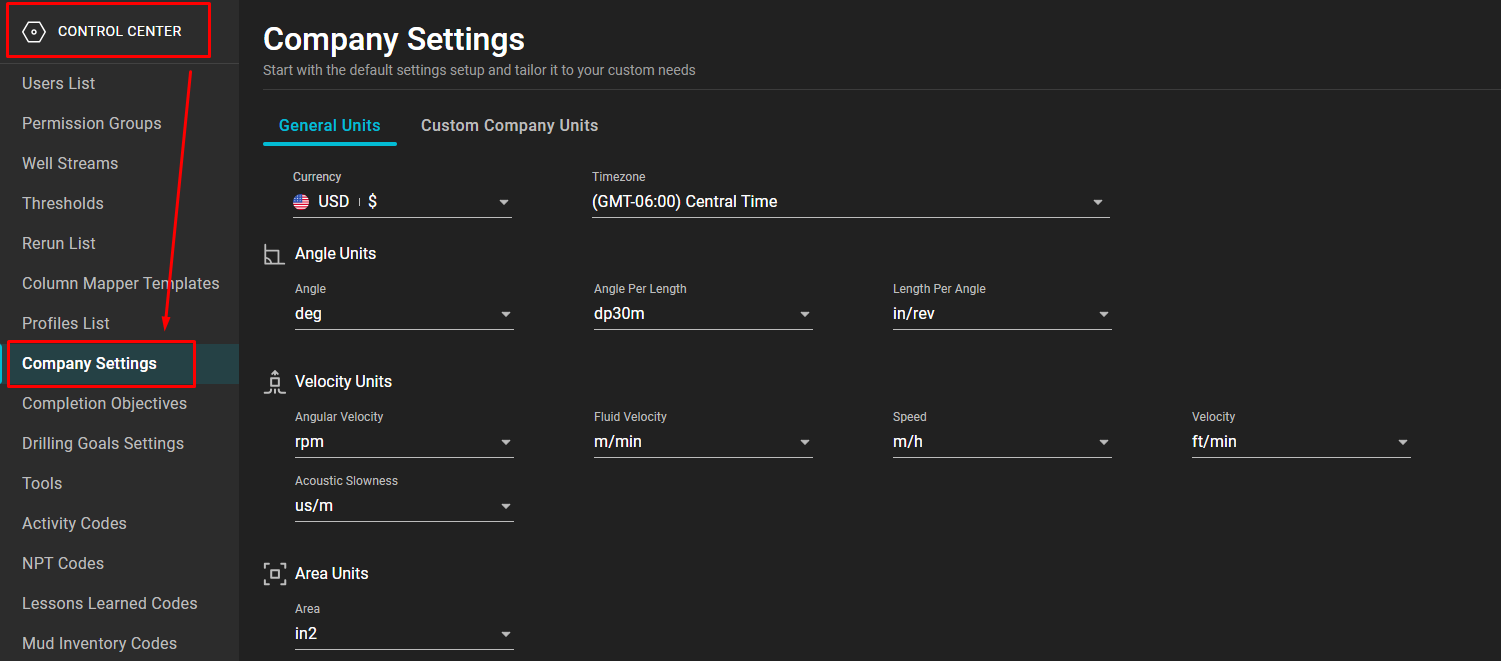
| Company | Users in the company | Establish the company's default unit system and custom measurement units. Company administrators manage these settings in Control Center → Company Settings. |
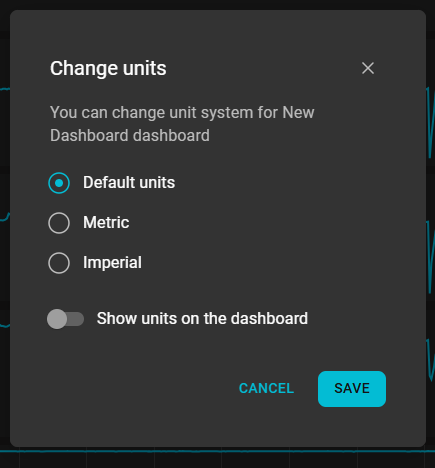
| User | One user | Override the company defaults for that user's work. The user manages these preferences from User Profile → Change Units. |
| Dashboard | One dashboard | Display a dashboard in its default, metric, or imperial unit system. Where available, the dashboard settings can also control whether unit labels are shown. |
| App-specific | One installed app | Let a user select a unit for a particular app or measurement. This is a setting implemented by the app developer and stored in appSettings; it is not a global Corva preference. |
Which preference wins
For standard platform preferences, Corva resolves the most specific available setting:
- Dashboard preference
- User preference
- Company preference
- Imperial fallback when no preference is available
The Corva host passes the resolved preference to @corva/ui. Your app should use the unit helpers from @corva/ui/utils instead of rebuilding this precedence from user or company fields.
If your app deliberately provides its own unit selector, that explicit app setting can take precedence for the measurements controlled by the selector. Make that behavior clear in the settings label so users understand why the app can differ from the rest of the dashboard.
Options for a frontend app
Follow Corva preferences — recommended
Convert each source value to the effective Corva preference. This is the best default because the app remains consistent with the surrounding dashboard and responds when preferences change.
Provide an app-specific override
Add a unit selector to the app settings when users need a different unit for a specific chart or workflow. Populate the selector from the supported units for that measurement type, and fall back to the effective Corva preference when no override is saved.
Use a fixed unit
Use an explicit target unit only when the workflow requires one, such as a contractual calculation or a domain-specific report. Always show the fixed unit and do not imply that it follows the dashboard preference.
Support editable measurements
Show the value in the user's display unit, then convert it back to the source or canonical unit before saving. Keeping storage and API writes in a consistent unit avoids mixing values from different preferences.
Unit types
Conversion helpers use a unit type to identify the kind of measurement. Common examples include length, pressure, temperature, density, torque, volume, volumeFlowRate, mass, speed, and time.
Do not hard-code a list of unit abbreviations for a selector. Use getAllUnitTypes() to inspect the supported types and getUnitsByType(type) to get the currently supported units for a type.
Next, see Converting Units for display, app-setting, and editable-input examples.